1
Video + audio in one MP4
We combine picture and sound into a single file that plays on phones, laptops, and TVs.
 Video-DownloadR.com
A lightweight media helper for popular video sites. When a page is playing content you’re allowed to watch, pick a quality and save video + audio together in one file.
Free browser add-on. Install it yourself in a few minutes (sideload — not from an app store). Full beginner instructions are below.
One clip at a time — simple, intentional saves of media you already have the right to watch.
We combine picture and sound into a single file that plays on phones, laptops, and TVs.
If you can play it while signed in (including premium content you already access), the extension can work with that same session.
Default is Best. Or pick 1080p, 720p, 480p, 360p, or audio-only for smaller files.
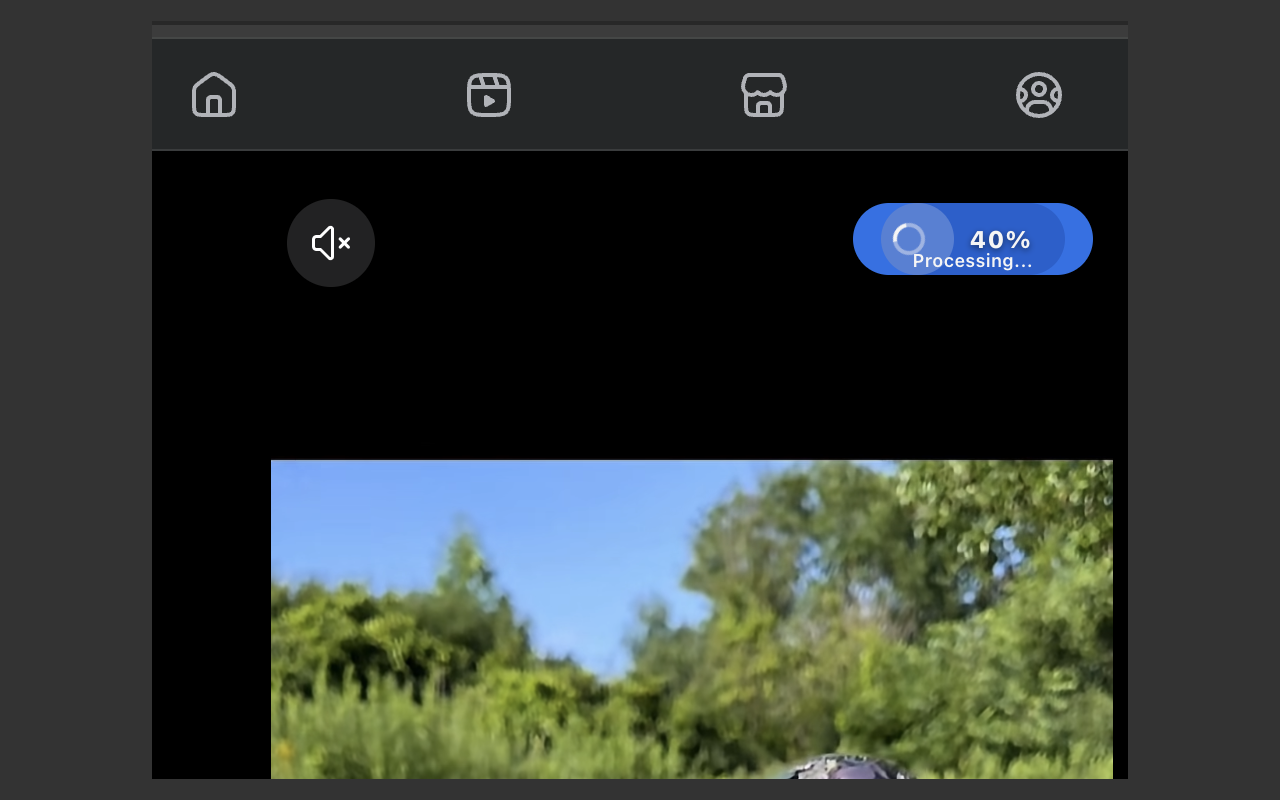
The panel shows “Processing…” with a spinner so you know work is happening.
Defaults to widely compatible H.264 video so the MP4 opens in common players.
A small gold control near the player when media is detected — for the page you’re already watching.
Built for popular video websites and social clips. Support varies by site and page layout.
*Availability depends on how each site serves media. Always respect the site’s terms and copyright.
Three simple steps after the extension is installed.
Stay signed into the account that can play the content, if the site requires login.
When media is detected, open the gold ↓ MP4 control. Choose quality (or leave Best) and confirm.
When processing finishes, your browser asks where to save the finished MP4.
You do not need to be a programmer. Follow the steps for your browser exactly. The whole process usually takes about 3–5 minutes the first time.
video-downloadr-extension.zip.
Inside it is a folder called video-downloadr-extension. That whole folder is the plugin.
In Chrome/Edge you will choose the entire folder (not a single file inside it).
The folder can live on your Desktop, Downloads, or anywhere you like — wherever you unzipped it is fine.
Works on Windows, Mac, and Chromebooks with Chrome installed.
Click the gold Download for Google Chrome button at the top of this page (or the link below).
Your computer will save a file called video-downloadr-extension.zip (usually in your Downloads folder).
Find video-downloadr-extension.zip in Downloads, then extract it:
You should now have a folder named video-downloadr-extension. You can leave it on your Desktop, in Downloads, or anywhere — no need to move it.
If you open that folder, you may see a file named manifest.json. That is only a check that you unzipped correctly. In Chrome you will not click that file — you will select the whole folder later.
video-downloadr-extension folder is. Next you load that entire folder into Chrome (not the zip, and not a single file inside).In Chrome, click the address bar at the top (where websites are typed), delete what’s there, type exactly this, then press Enter:
chrome://extensionsOr: click the three-dot menu (⋮) → Extensions → Manage extensions.
On the Extensions page, look in the top-right corner for a switch labeled Developer mode.
Click it so it is ON (usually blue/colored when on).
Click Load unpacked.
A file window opens. Browse to where you unzipped the download (Desktop, Downloads, etc.).
Important: Select the folder named video-downloadr-extension itself — the entire folder — then click Select Folder (Windows) or Open (Mac).
video-downloadr-extensionvideo-downloadr-extension.zipmanifest.json in Chrome)When it works, Chrome lists Video-DownloadR.com on your Extensions page (not any other name).
Click the puzzle-piece icon in Chrome’s toolbar → find Video-DownloadR.com → click the pin so it stays visible.
Almost identical to Chrome. Same zip file.
Download video-downloadr-extension.zip, then extract it so you have a video-downloadr-extension folder with manifest.json inside (same as Chrome steps 1–2 above).
In the address bar type:
edge://extensionsPress Enter.
Turn Developer mode ON (left sidebar or top of the page, depending on your Edge version).
Click Load unpacked → select the entire video-downloadr-extension folder (not a file inside it) → Open / Select Folder.
Refresh a video page after install → click gold ↓ MP4 when it appears → save.
Works on desktop Firefox. Temporary install (you may need to load it again after restarting Firefox).
Download video-downloadr-extension.zip and extract the video-downloadr-extension folder (same as Chrome).
In the address bar type exactly:
about:debugging#/runtime/this-firefoxPress Enter.
Click Load Temporary Add-on…
Firefox is different from Chrome: here you open the video-downloadr-extension folder and select the single file named manifest.json (not the zip).
Click Open. You should see Video-DownloadR.com listed.
Refresh after install → open a video → click ↓ MP4 when available → save.
video-downloadr-extension folder (not a file inside).
Developer mode must be ON.
After install, reload your video tab so the gold ↓ MP4 control can appear.
Look for the name Video-DownloadR.com in your extensions list.
Safari is not supported.
Video-DownloadR.com is built for modern desktop browsers.
Other Chrome-based browsers (Brave, Opera, Vivaldi, Arc) usually work the same way as Chrome: Developer mode → Load unpacked.
Version 1.7.0 · 21.7 KB · for personal use of media you’re allowed to watch.
Video-DownloadR.com for Facebook adds focused download controls to supported Facebook pages. Save videos, Reels, photos, and albums in the browser, with local merging when Facebook supplies separate audio and video streams.
Independent software. Not affiliated with or endorsed by Facebook or Meta. Download only content you are authorized to use.
The Facebook product is designed around user-initiated downloads and keeps its operational data on the device.
Choose an available quality from supported Facebook posts, pages, and Reels.
Download individual photos or collect supported album and gallery images.
Merge separate audio and video streams locally when needed, with progress feedback.
Queue supported videos and galleries while watching progress in the optional side panel.
Keep settings, favorites, and download history locally for convenient repeat use.
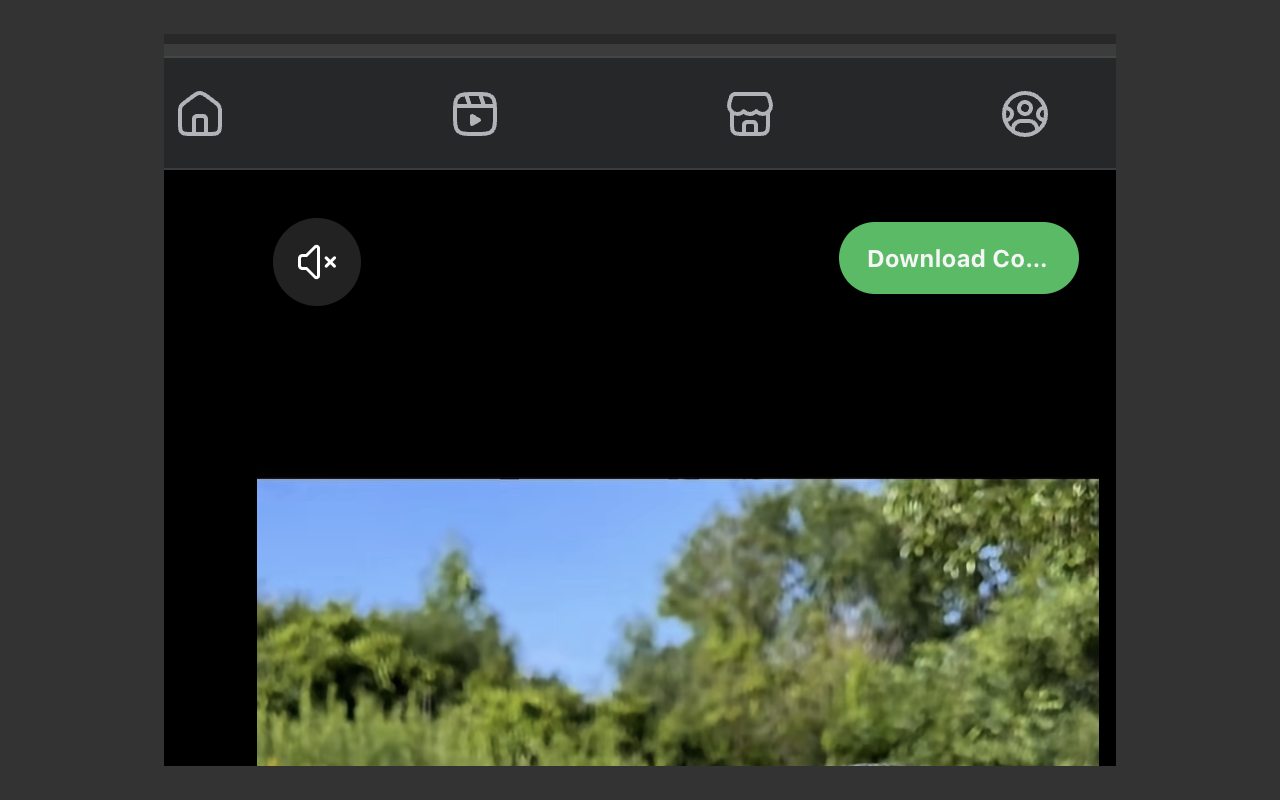
See Downloading, Processing, percentage progress, completion, and errors in context.
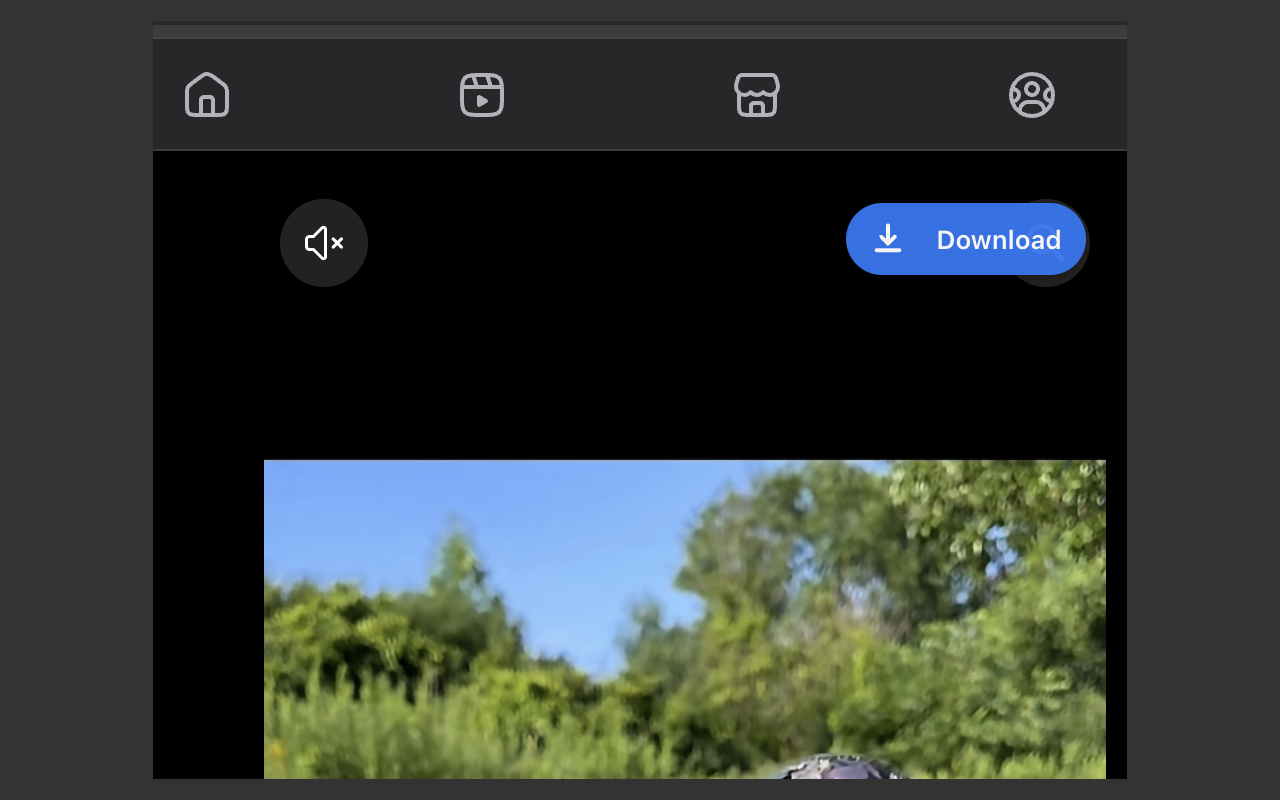
Choose a video, tap Download, and watch the extension take care of the rest. You’ll see each step clearly, from starting the download to processing and the finished file.